
In 2026, your smartphone is a powerful photo studio thanks to free apps packed with AI tools. Whether you’re a traveler fixing lighting on the go, a parent editing family snapshots, or a hobbyist polishing portraits, these apps deliver professional-looking results without costing a cent.
In this guide, you’ll learn exactly which free AI photo editing apps stand out, how Snapseed and Lightroom Mobile compare, and simple tips to get stunning edits fast. No jargon, just practical advice that works on both Android and iOS.
What Are Free Photo Editing Apps with AI?
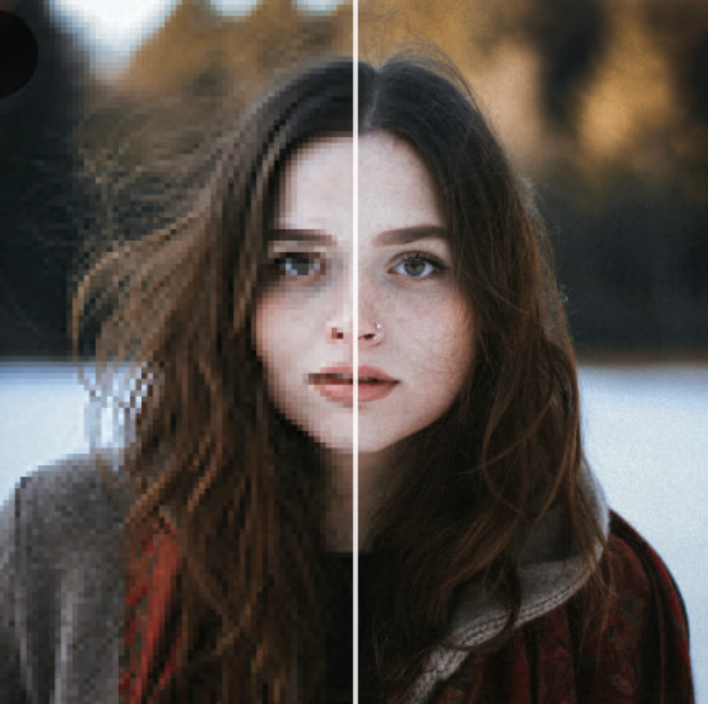
Free photo editing apps with AI use smart technology to automate tasks like object removal, selective adjustments, background blur, or one-tap enhancements. Unlike basic filters from years ago, today’s AI tools understand your photo’s content—detecting faces, skies, or subjects—so you spend less time tweaking sliders and more time creating.
The best ones keep core features completely free while offering optional upgrades. In 2026, you don’t need expensive software to remove distractions, enhance colors, or add creative effects.
Key Features and Benefits of AI-Powered Free Photo Editors
AI makes editing faster and smarter. Here’s what you’ll typically find in top free options:
- Smart selective editing — AI detects objects so you can adjust only a specific area (like brightening a subject while keeping the background natural).
- One-tap enhancements — Auto-fix exposure, color balance, or skin tones in seconds.
- Object removal or healing — Erase unwanted items cleanly without leaving traces.
- Background blur or bokeh — Create professional-looking portraits with dreamy focus.
- RAW support and non-destructive edits — Edit high-quality files while keeping originals safe.
- Cross-device sync (in some apps) — Start on your phone and finish on tablet or desktop.
These features save time and help beginners achieve pro results while giving experienced users precise control.
Best Free Photo Editing Apps with AI in 2026
Here are the standout free options that deliver real AI power without hidden costs or watermarks on basic exports.
Snapseed – The King of Completely Free Editing
Snapseed, from Google, remains the top pick for most people in 2026. It’s 100% free, ad-free, and packed with 29 professional tools.
Recent updates added on-device AI like the Object Brush, which lets you draw over any part of a photo and adjust it independently—perfect for fixing a distracting background or enhancing a flower in a landscape shot. It also supports RAW files, selective adjustments, healing, curves, and custom “Looks” (presets you create and reuse).
Real-life example: On a recent hike photo, I used the Object Brush to subtly boost the colors of a mountain peak without over-saturating the sky. The edit took under a minute and looked natural.
Available on iOS and Android (with a major Android refresh rolling out in 2026).
Lightroom Mobile – Powerful Free Tier with AI Touches
Adobe’s Lightroom Mobile offers a generous free version ideal for photographers who want cloud syncing and polished presets.
Free AI features include Lens Blur for realistic depth-of-field effects and Quick Actions that intelligently adjust brightness or contrast on specific areas. Advanced generative tools (like object removal) sit behind a premium wall, but the free tier still handles most everyday needs beautifully.
Why it shines: Seamless workflow if you already use Adobe tools, plus excellent color grading and batch editing.
Other Strong Free Contenders
- PicsArt: Excellent for creative edits with AI background removal and image expansion in the free tier (daily limits apply for heavy AI use). Great for social media graphics and collages.
- Canva: Beginner-friendly with Magic Edit and Magic Eraser. Ideal if you want templates alongside AI photo tweaks—perfect for quick Instagram or blog visuals.
- Photoshop Express: Solid free Adobe option with auto object selection and basic AI enhancements. Pairs well with Lightroom if you stay in the Adobe ecosystem.
- Pixlr: Web and app access with limited free AI credits for cutouts and generative fills—handy for quick browser-based edits.
These apps cover everything from simple fixes to creative experiments while staying completely legal and safe.
Snapseed vs Lightroom Mobile: Head-to-Head Comparison
| Feature | Snapseed | Lightroom Mobile (Free Tier) |
|---|---|---|
| Cost | Completely free, no ads | Free with optional premium |
| AI Tools | Object Brush (selective AI) | Lens Blur, Quick Actions |
| RAW Support | Full | Full |
| Learning Curve | Slightly steeper but rewarding | More beginner-friendly |
| Best For | Precision manual + selective edits | Presets, cloud sync, batch work |
| Storage/Sync | Local only | Cloud sync (limited free storage) |
Bottom line: Choose Snapseed if you want zero restrictions and maximum control. Go with Lightroom if you value speed, presets, and syncing across devices. Many users keep both—they complement each other perfectly.
Pros and Cons of Top Free AI Photo Editing Apps
Snapseed Pros: Truly free forever, powerful tools, offline-first, improving AI. Cons: Interface can feel technical at first; fewer one-click generative features than paid apps.
Lightroom Mobile (Free) Pros: Professional results, great presets, easy AI blur. Cons: Some advanced AI locked behind subscription; cloud storage limits.
PicsArt / Canva Pros: Fun, creative AI tools; templates galore. Cons: Daily limits on heavy AI use in free tier.
Overall, the pros far outweigh the cons for casual to intermediate editors in 2026.
Practical Tips and Best Practices
- Start simple: Always edit a copy of your photo. Most apps save non-destructively.
- Master selective AI: Use brushes or masks first—small targeted changes look more natural than global sliders.
- Combine apps: Edit in Snapseed for precision, then export to Canva for text or templates.
- Learn your “Looks”: Save custom presets in Snapseed or Lightroom for consistent style across a photo series (great for travel albums or product shots).
- Work in good light: Edit on a calibrated screen or in daylight for accurate colors.
- Backup originals: Use Google Photos or your phone’s built-in backup before heavy edits.
Pro tip: For portraits, try Snapseed’s healing tool followed by Lightroom’s free Lens Blur—you’ll get magazine-quality results in minutes.
FAQs
Is Snapseed really completely free in 2026? Yes. No ads, no subscriptions, no watermarks on exports—just pure editing power from Google.
Does Lightroom Mobile have useful free AI features? Absolutely. Lens Blur and Quick Actions work well in the free tier, though advanced generative fill requires premium.
Which app is best for complete beginners? Canva or Photoshop Express for one-tap AI magic. Move to Snapseed once you’re ready for more control.
Can these apps edit RAW photos for free? Yes—both Snapseed and Lightroom Mobile handle RAW files beautifully without extra cost.
Are there any truly unlimited free AI photo editors? Snapseed comes closest. Others offer generous free tiers but may limit daily AI credits for advanced generative tasks.
Conclusion
In 2026, you have more free AI photo editing power in your pocket than ever before. Snapseed delivers unmatched freedom and precision, Lightroom Mobile adds polish and convenience, and apps like PicsArt and Canva bring creative flair.
Start with Snapseed or Lightroom Mobile today—they’re both free to explore. Experiment, save your favorite looks, and watch your photos improve dramatically. Your next great shot is just a few taps away.
Get started with these powerful free tools and turn ordinary photos into extraordinary memories. Happy editing!