
Have you ever wondered how your phone unlocks with just one touch? That magic is your fingerprint lock screen at work. It is one of the smartest security features on modern smartphones today.
In this guide, you will learn what a mobile display fingerprint lock screen is, how it works, its best features, and practical tips to use it safely every day.
What Is a Mobile Display Fingerprint Lock Screen?
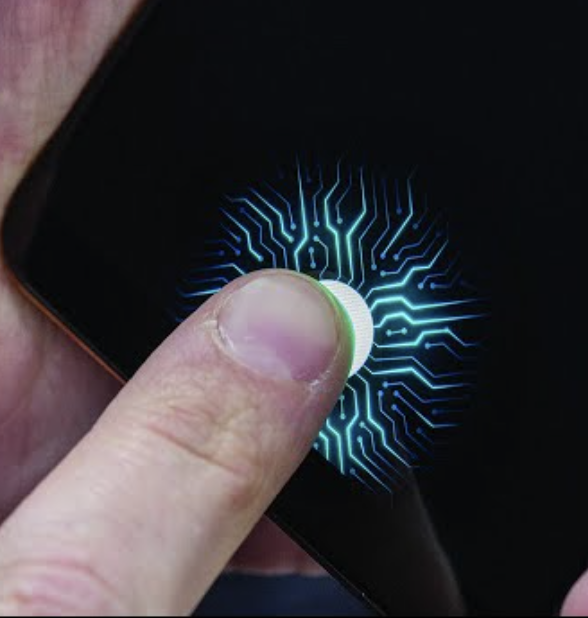
A mobile display fingerprint lock screen is an advanced unlocking system that allows you to unlock your phone by simply placing your finger on the screen. Instead of typing a PIN or drawing a pattern, your unique fingerprint does all the work in less than a second.
The fingerprint sensor can be placed under the display (optical), in the power button (capacitive), or on the back panel of the device. The most modern smartphones now hide the sensor directly beneath the screen, giving the phone a clean, button-free look.
Think of it like a digital key that only you carry — and you can never lose it or forget it.
How Does It Work?
When you first set up your phone, you register your fingerprint in the device settings. The phone maps the unique patterns of your finger and stores a secure template.
Good apps and devices do not store your fingerprint as an image. Instead, they ask the device’s biometric system to confirm a “match” or “no match.” The template cannot be reconstructed into a photograph of your finger. That is why biometric authentication is considered both private and convenient.
Every time you press your finger on the screen, the sensor checks if it matches your saved fingerprint. If it does — your phone unlocks instantly.
Key Features and Benefits
Mobile display fingerprint lock screens come packed with useful features. Here are the most important ones:
Fast Unlocking Fingerprint unlocking is faster than typing a code, especially when you are on the move. It takes less than half a second in most cases.
Shoulder-Surf Protection There are no visible digits for snoopers to memorize. Unlike a PIN, nobody can watch over your shoulder and copy your password.
App Lock App lock adds a biometric prompt before opening chosen apps — such as Messages, Facebook, Instagram, banking apps, or email. It is especially useful if you share your device occasionally.
Intruder Selfie If someone tries to unlock your locked apps using the wrong password, the app captures a selfie of the intruder and logs the time. This is a brilliant feature if someone tries to sneak into your phone.
Media Vault A vault hides private media inside an encrypted space accessible only after biometric verification. Many users keep ID scans, medical PDFs, or family photos here.
Multiple Unlock Options You can choose from fingerprint lock, voice lock, PIN lock, and pattern lock options. This gives you flexibility depending on the situation.
Customizable Themes Fingerprint animation apps add different animation styles when scanning or unlocking your phone, along with live wallpapers and themes that sync with the fingerprint effect. Your lock screen can look as stylish as you like.
Best Ways to Use a Fingerprint Lock Screen
There are two main ways to enjoy fingerprint security on your phone:
1. Built-in Device Fingerprint Lock Most modern smartphones come with a fingerprint sensor already built in. You just need to go to your phone’s Settings, find the Security or Biometrics section, and register your fingerprint. This is the most reliable and secure method.
2. Third-Party App Lock Tools There are many fingerprint lock app options available on the Google Play Store. These apps let you lock individual apps like WhatsApp, Instagram, your gallery, or banking apps — adding an extra layer of protection beyond the main lock screen.
Popular trusted options available on app stores include tools that offer app locking, media vaults, intruder selfies, and theme customization. Always choose apps with good ratings and a large number of downloads. Read the permissions they ask for before installing.
Fingerprint Lock vs. PIN vs. Pattern — A Quick Comparison
| Feature | Fingerprint | PIN | Pattern |
|---|---|---|---|
| Speed | Very Fast | Moderate | Moderate |
| Security Level | High | Medium | Medium |
| Easy to Forget | Never | Yes | Yes |
| Shoulder-Surf Risk | None | Moderate | Moderate |
| Works When Wet | Sometimes | Yes | Yes |
Fingerprint is the winner in most situations. However, always set a backup PIN in case your fingers are wet or the sensor has a rare misread.
Pros and Cons
Pros
- Extremely fast and convenient
- Highly secure and unique to you
- Cannot be forgotten or stolen easily
- Works for both phone unlock and individual app lock
- Adds a modern, stylish look to your device
Cons
- May not work well if your fingers are wet or dirty
- Some budget phones have slower sensors
- Requires setup time to register fingerprints properly
- Third-party app lock tools may show ads in free versions
Practical Tips and Best Practices
Follow these simple tips to get the most out of your fingerprint lock screen:
Register more than one finger. It is highly recommended to register multiple fingers, such as both thumbs or index fingers, for added convenience.
Always set a backup PIN. The best setup supports fingerprint plus a fallback PIN or pattern. That way your device stays usable if your finger is wet, injured, or the sensor misreads.
Keep your software updated. Updates patch known exploits. Always install operating system updates as soon as they are available and keep your device’s security software up to date.
Use liveness detection. Stick to fingerprint recognition that uses liveness detection and avoid biometric systems that can be fooled by a printed photo.
Enable remote lock features. Services like Find My Device on Android allow immediate remote locking, real-time location tracking, and data wiping in case your phone is lost or stolen.
Be careful with app permissions. Only give fingerprint-related permissions to apps you fully trust. Check the developer name and read reviews before installing any security tool.
Frequently Asked Questions (FAQs)
Q1: Is fingerprint lock screen safe to use? Yes, it is one of the safest ways to lock your phone. Your fingerprint data is stored securely on the device itself and is never shared online. The system only checks for a match — it does not save an actual image of your fingerprint.
Q2: Can someone unlock my phone with a fake fingerprint? Modern fingerprint sensors now use AI to detect signs of spoofing, such as fake 3D-printed molds. High-quality sensors are very difficult to fool. Always use a phone with a trusted, certified biometric sensor.
Q3: What happens if my fingerprint does not work? If your finger is wet, injured, or the sensor misreads, you can always use your backup PIN or password to unlock the phone. This is why setting a backup method is so important.
Q4: Can I lock specific apps with fingerprint? Yes. You can choose between a fingerprint, PIN, or pattern to lock any app of your choice, including social apps, gaming apps, gallery, and other sensitive data.
Q5: Do fingerprint lock apps drain my battery? Most well-designed fingerprint lock apps are lightweight and have very low impact on battery life. However, live wallpapers and animations can draw extra battery, so it is best to choose apps with optimized performance.
Conclusion
A mobile display fingerprint lock screen is one of the best ways to protect your personal data in today’s world. It is fast, secure, and incredibly easy to use — and it works for your whole phone as well as individual apps.
Whether you use the built-in sensor on your smartphone or explore trusted app lock tools from your device’s app store, fingerprint security gives you peace of mind every single day.
Start with your phone’s built-in settings, register a couple of fingers, set a strong backup PIN, and you are all set. Your phone, your privacy — protected with just one touch.
Learn more about mobile security features in your device’s official settings, or explore trusted security tools on your app store to get started today.